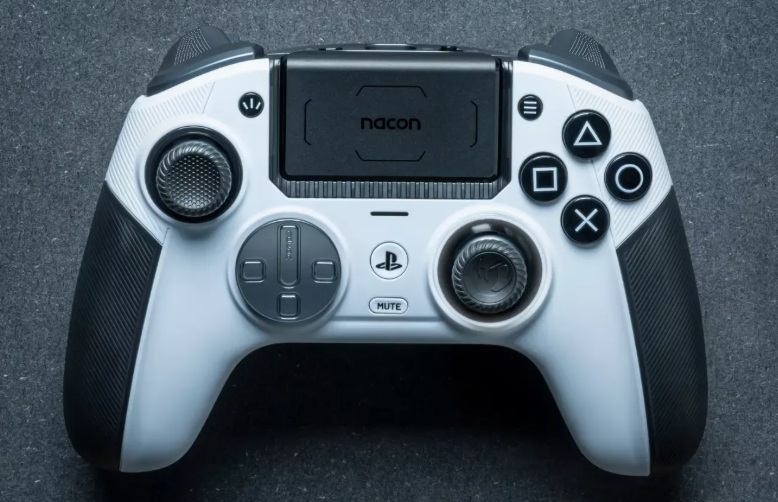
It’s one of the most frustrating issues a gamer can face: you put your controller down, but your character keeps moving. This phenomenon, known as stick drift, can turn an immersive gaming session into an unplayable nightmare. For PlayStation 5 owners, the advanced DualSense controller is a marvel of technology, but it isn’t immune to this problem. The good news is that you don’t have to immediately buy a new controller. This guide will walk you through everything you need to know about how to fix stick drift PS5, from simple software tweaks to more hands-on repairs.
Stick drift occurs when the analog sticks on your controller register movement even when you aren’t touching them. This can manifest as your character slowly walking to the left, your camera panning on its own, or menus scrolling endlessly. The issue is often caused by the natural wear and tear of internal components, a buildup of dust and debris, or sometimes even a software glitch. Understanding the cause is the first step toward finding the right solution.
Whether you’re battling opponents in a fast-paced game like Fortnite or exploring vast open worlds, a properly functioning controller is essential. We’ll explore various methods, including how you can potentially resolve the issue without opening the controller, and even look at options for the premium DualSense Edge.
Understanding the Root Causes of PS5 Stick Drift
Before diving into the fixes, it’s helpful to understand what’s happening inside your DualSense controller. The analog sticks rely on components called potentiometers to measure their position. These parts have a finite lifespan and can degrade over time.
The Culprits Behind Unwanted Movement
Several factors can contribute to the dreaded PS5 controller left stick drift or right stick drift:
- Wear and Tear: The most common cause. The internal mechanisms of the analog stick, particularly the potentiometers, wear down from constant use. This creates “noisy” electrical signals that the console interprets as movement.
- Debris Buildup: Dust, skin cells, and other tiny particles can work their way into the base of the joystick. This physical obstruction can prevent the stick from returning to its true neutral position, causing a drift.
- Software and Firmware Glitches: Sometimes, the problem isn’t hardware at all. A bug in the controller’s firmware or the console’s system software can lead to miscalibration and phantom inputs. This is why keeping everything updated is crucial.
- Physical Damage: Dropping your controller can misalign or damage the sensitive internal components of the analog stick assembly, leading to immediate and severe drift.
Knowing the potential cause can help you choose the most effective method for how to fix stick drift PS5. Let’s start with the easiest solutions first.
Simple Fixes: How to Fix Stick Drift PS5 Software and Basic Maintenance
You don’t always need a screwdriver and a technical manual to solve this problem. Many times, a few simple steps can get your DualSense controller working perfectly again. These methods are safe, easy, and should always be your first course of action.
The Power of a System and Controller Update
Sony regularly releases firmware updates for the PS5 and its accessories, including the DualSense controller. These updates often include performance improvements and bug fixes that can resolve issues like stick drift.
How to Update Your DualSense Controller Firmware
- Connect your DualSense controller to your PS5 console using the USB cable that came with it. A wired connection ensures the update process is stable.
- Navigate to Settings > Accessories > Controller (General).
- Select DualSense Wireless Controller Device Software.
- If an update is available, the system will prompt you to download and install it. Follow the on-screen instructions.
This is a key step in learning how to fix stick drift PS5 software issues. An update can recalibrate your controller and eliminate glitches causing the drift.
A Full Reset Can Work Wonders
If updating the firmware doesn’t solve the problem, the next step is to perform a hard reset on the controller. This process restores the controller to its factory default settings, clearing out any corrupted data that might be causing the drift.
Steps to Reset Your PS5 Controller
- Turn off your PS5 console completely.
- Look on the back of your DualSense controller. You will see a tiny pinhole near the L2 shoulder button.
- Use a small, unfolded paperclip or a SIM ejector tool to press and hold the reset button inside the pinhole for at least five seconds.
- After releasing the button, connect the controller back to the PS5 with your USB cable and press the PS button to turn it on and re-pair it with the console.
This simple procedure is a surprisingly effective solution for many electronic devices, and it’s a vital troubleshooting step for your PS5 controller.
Cleaning Your Controller: The Non-Invasive Method
This is the primary method for how to fix stick drift PS5 without opening the device. Over time, the area around the base of the analog sticks can accumulate a significant amount of dust, hair, and other small debris.
The Palm Pressure Technique
A popular and often successful method shared among the gaming community involves using gentle pressure and rotation to dislodge any internal debris.
- With the controller on, press down on the drifting analog stick with the palm of your hand. Apply just enough gentle pressure to click the L3 or R3 button.
- While maintaining this pressure, rotate the stick in a full clockwise motion for about 30 to 60 seconds.
- Next, repeat the process, rotating the stick in a counter-clockwise motion for another 30 to 60 seconds.
- You may hear some light squeaking or feel a change in resistance, which can be a sign that debris is being cleared.
This technique can reposition the internal sensors and clear out minor obstructions without any risk of damaging your controller. For many, this simple trick is all that’s needed to fix a drifting stick.
Using Compressed Air
If the rotation method doesn’t work, compressed air (or canned air) is your next best friend.
- Hold the can of compressed air upright.
- Pull the drifting analog stick to one side to create a small gap at its base.
- Deliver a few short bursts of air into the gap.
- Rotate the stick and repeat this process from several different angles to ensure you blow out debris from all sides of the mechanism.
- Afterward, click the L3 and R3 buttons a few times and rotate the sticks to help settle the components.
Caution: Never shake the can of compressed air or spray it upside down, as this can release freezing liquid propellant that could damage the controller’s electronics.
Intermediate and Advanced Solutions for Persistent Drift
If the simple fixes haven’t resolved your PS5 controller left stick drift, it may be time for more involved solutions. These methods carry a higher risk and may void your warranty, so proceed with caution.
Adjusting In-Game Deadzone Settings
Many modern games, especially competitive titles like Fortnite, offer settings to counteract stick drift. This is a great workaround if you only experience the issue in specific games.
How to Fix Stick Drift PS5 Fortnite and Other Games
- Launch the game where you are experiencing stick drift.
- Go to the game’s settings menu, and look for Controller or Controls options.
- Find a setting labeled “Deadzone,” “Controller Deadzone,” or “Input Threshold.”
- The deadzone is a small area around the center of the analog stick where the game ignores input. By slightly increasing this value, you tell the game to ignore the minor, unwanted movements caused by stick drift.
- Increase the deadzone value by a small amount (e.g., from 0.05 to 0.08) and test it. Continue making small adjustments until the drift stops without noticeably impacting your gameplay.
This is a software fix that acts as a band-aid for a hardware problem, but it can make your controller usable again and extend its life.
The DualSense Edge Advantage
If you’re considering a new controller and want to avoid future drift headaches, the PS5 DualSense Edge offers a unique solution. A key feature of this premium controller is its replaceable stick modules.
How to Fix Stick Drift PS5 DualSense Edge
With the DualSense Edge, you don’t need to repair or replace the entire controller. If a stick starts to drift, you can simply purchase a new stick module (sold separately) and swap it out in a matter of seconds. This design acknowledges that analog sticks are wearable parts and provides a simple, official solution. This is, by far, the most permanent fix for stick drift on the PS5 platform.
Using Your Controller on a Computer
Sometimes, testing and recalibrating your controller on a different platform can help. If you use your DualSense for PC gaming, there are tools available.
How to Fix Stick Drift PS5 Controller on PC
- Connect your PS5 controller to your PC via USB or Bluetooth.
- Visit a website like gamepad-tester.com. This tool will visually show you the inputs from your controller. You can see if the analog stick is truly off-center when in its neutral position.
- For more advanced calibration on PC, you can use software like DS4Windows or Steam’s built-in controller configuration tools. These programs allow you to create custom profiles and adjust deadzones at a system level, which can help manage the drift when playing PC games.
When to Seek Professional Repair or Replacement
You’ve tried everything, from software updates to cleaning, and the drift persists. At this point, you have a few final options. This is the last resort when learning how to fix stick drift PS5.
If your controller is still under Sony’s one-year manufacturer’s warranty, your best option is to contact PlayStation Support. They can guide you through the process of getting your controller repaired or replaced, often for free.
If your warranty has expired, you can either attempt a more complex DIY repair, which involves opening the controller and potentially soldering new potentiometers, or you can take it to a third-party electronics repair shop. Given the complexity and risk of permanent damage, most users are better off considering a replacement. While it’s an added expense, the frustration saved might be well worth the cost. A new controller guarantees a fresh start and many more hours of drift-free gaming.
Frequently Asked Questions (FAQs)
1. Can cleaning my PS5 controller really fix stick drift?
A: Yes, in many cases, it can. Stick drift is often caused by a buildup of dust and debris inside the analog stick mechanism. Performing a non-invasive cleaning by rotating the stick with palm pressure or using short bursts of compressed air can dislodge these particles and restore the stick’s proper function.
2. How do I know if my stick drift is a hardware or software problem?
A: A good way to test this is to first ensure your controller and PS5 system software are fully updated. Then, reset the controller. If the drift disappears, it was likely a software glitch. If it persists across multiple games and after a reset, and especially if you can replicate it on a PC using a gamepad tester, the issue is almost certainly with the physical hardware of the analog stick.
3. Will increasing the deadzone in a game affect my performance?
A: It can, but the effect is usually minimal if adjusted correctly. A higher deadzone means you have to move the stick slightly further before it registers an input. For most players, a small increase to stop drift is unnoticeable. However, in highly competitive games where millimeter-precise movements are critical, a large deadzone could feel less responsive. It’s a trade-off between responsiveness and eliminating drift.
4. Is the PS5 DualSense Edge controller immune to stick drift?
A: No, the DualSense Edge is not immune to stick drift because it uses similar analog stick technology. However, its key advantage is that the stick modules are replaceable. So, if drift occurs, you can solve the problem by swapping in a new module for around $20, instead of having to buy a whole new controller for $200.
5. Does the PS5 controller have more stick drift problems than previous PlayStation controllers?
A: While it’s a widely discussed topic, the issue of stick drift is not new and has affected controllers from all major console manufacturers for years. The intricate design of modern analog sticks, combined with the high sensitivity required for today’s games, makes them susceptible to wear. The PS5 controller may feel more prone to it simply because of its widespread adoption and the high expectations placed upon it. The fundamental potentiometer technology is the common point of failure across many generations of controllers.